
| Author: | |
| Website: | |
| Page title: | |
| URL: | |
| Published: | |
| Last revised: | |
| Accessed: |

Forms are ubiquitous on the World Wide Web. We come across them everywhere. We fill in an application form to sign up for or an online account, and we later use a login form to sign into that very same account. Forms allow us to interact with web applications in countless ways.
Forms allow users to order goods and services, make payments, register for events, search for information, and provide feedback online. They allow governmental organisations and businesses to gather personal data and analyse trends. Without forms, the online services we now take for granted - everything from e-commerce to online banking to search engines - would not be possible.
In most cases, the information gathered by a form is sent to a web server, where it is processed by a server-side script. The server-side script might formulate an immediate response to the information received and send that response to the user. It might also store the information in a file or database for later use. Whatever other tasks the script is designed to undertake, it should always generate some kind of feedback to let the user know that their form submission is being dealt with.
A typical online transaction will often involve a number of steps, the first of which involves the user entering data in a form. Once the form data is received by the server it will be processed, and further action will be taken, depending on the nature of the transaction.
One thing that all web applications have in common is the need to validate the data received before it is processed. The data must be complete, and in the correct format. Telephone numbers and email addresses, for example, are often required to be in a specific format, especially if they will later be used by automated processes to generate email or SMS notifications.
A server-side script that processes form data must implement features that safeguard the security of data being submitted to the server, especially user data that may include sensitive personal information. It must also prevent the script from being used to upload malicious content to the server - a process known as sanitisation.
In this article, the focus is naturally on how form data is processed by a server-side script. However, we cannot look at the role of the server-side script in isolation. There are other technologies to consider.
Web-based forms are invariably created using HTML code. The manner in which the HTML form is presented to the user is determined using cascading style sheets (CSS). The data entered into the form by the user is typically validated on the client computer before it is sent to the server using code written in JavaScript or some other ECMA-compliant language.
It is of course possible for PHP to generate the HTML, CSS and JavaScript code that is used, not only to generate web-based forms, but to create a complete web application interface. Many e-commerce platforms and content management systems, for example, are written primarily in PHP or some other server-side scripting language that generates all of the client-side code.
In this article, we are not going to talk about how to create large-scale web applications. We will focus instead on the server-side processing of form data. Nevertheless, we need to look at least briefly at the other elements involved, including how the forms themselves are created and styled, and how we use client-side scripts to ensure that the data received by the server is complete and correctly formatted.
An HTML form consists of a collection of controls that enable a user to enter data and submit that data to a server. The available form controls can be summarised as follows:
A form is created using HTML code and styled using CSS. If you are unfamiliar with creating forms in HTML, you might find it useful to read the article "Creating and Formatting Forms" on this website, which describes in some detail how to create and style an HTML form for various kinds of user input.
We are going to start by creating a simple sign-up form that could be used to open an online account with an organisation that provides online services of some kind. Once the form has been created, we will look at how we submit the data entered in the form to a PHP script located on the organisation's server.
In order to understand what follows, you should at least be familiar with how HTML, CSS and JavaScript are used to create web pages, but you are not expected to have a comprehensive knowledge these languages. We will provide the code that creates the web page on which the sign-up form resides, and briefly explain how the various elements function. Here is the code:
<!doctype html>
<html lang="en">
<head>
<meta charset="utf-8">
<title>Sign Up Form Demo</title>
<style>
form {width: 460px; margin: auto; border: solid 1px; padding: 0 1em;}
label {width: 120px; display: inline-block; text-align: right;}
h1 {text-align: center;}
select {background-color: #fff; border: solid 1px #8f8f9d;}
</style>
</head>
<body>
<h1>Sign up now for TechnologyUK</h1>
<form method="" action="">
<p><label for="title">Title: </label>
<select id="title" name="title" required>
<option value="" selected readonly>Title</option>
<option value="mr">Mr</option>
<option value="ms">Ms</option>
<option value="mrs">Mrs</option>
<option value="other">Diverse</option>
</select>
</p>
<p><label for="fname">First name: </label><input type="text" size="15" id="fname" name="fname" required></p>
<p><label for="lname">Last name: </label><input type="text" size="15" id="lname" name="lname" required></p>
<p><label for="email">Email address: </label><input type="email" size="40" id="email" name="email" required></p>
<p><label for="mob">Mobile: </label><input type="tel" size="15" id="mob" name="mob"> (optional)</p>
<p><label for="pword">Password: </label><input type="password" size="20" id=" pword" name="pword" required></p>
<p style="text-align: center;"><button type="submit">Submit</button></p>
</form>
</body>
</html>
Copy and paste the above code into a new text file, and save the file as sign-up.html in your server's document root directory (or a sub-directory if you prefer - just make a note of where you have saved it). If you haven't yet set up a web server on your computer, you might want to read the article "Using XAMPP" in this section. If you now open the file in a web browser and enter some data, it should look something like the illustration below.
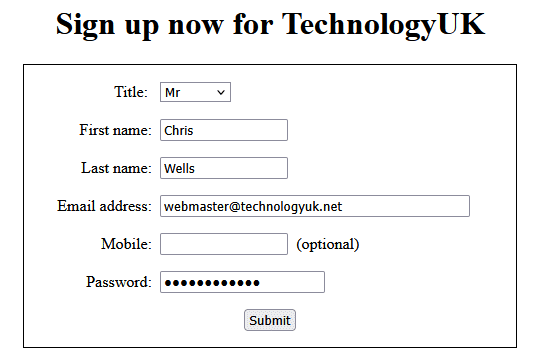
A simple sign-up form
The head of the HTML document contains a <title>...</title> element that holds the page title ("Sign up Form Demo"), and a <style>...</style> element that contains the CSS styling directives for the page.
The form controls include a drop-down list for the user to select their preferred honorific (Mr, Ms, Mrs etc.), two text input fields for the user's first and last name, input fields for an email address and a mobile telephone number, and an input field for a password.
Each input field is preceded by a <label> tag that gives the user a hint as to what kind of information they are expected to enter in each input field. Each <label> tag includes a for attribute that specifies the id attribute of the input field with which it should be associated.
Each input fields has a type attribute that specifies the type of data the field expects to receive. In this example, the input types used are text, email, tel, and password, which indicate that these fields expect to receive, respectively, basic text information, an email address, a telephone number, and a password. A complete list of form input types can be found in the article "Creating and Formatting Forms" on this website.
Each form control has a name attribute that specifies a name (or key) that is unique within the form. The data (or value) entered in a field by the user, or selected in the case of the drop-down list, is associated with the field name. The control name and the data associated with it make up a unique key-value pair.
The "Submit" button enables the user to send the data they have entered in the form to a script on the server that will process the data and perform some action.
The data is sent to the server as part of an HTTP request message that includes all of the form's key-value pairs. The script to which the data is sent will be determined by the value specified for the form's action attribute. The way in which the request message is formed is specified by the form's method attribute.
Note that, in the above example, we have not specified any values for the form's action or method attributes. We'll do that later, once we have created a suitable server-side script to handle the form data.
In a typical scenario, the user will input data to the form and click on a "Submit" button to send the data to the server. Before the data is sent, however, some kind of validation is usually carried out at the client end to make sure that (a) all of the required data has been provided, and (b) all of the data has been entered in the correct format.
In the past, data validation has often been carried out by client-side scripts written in JavaScript. These scripts typically check to see whether all of the required fields have been completed, and that things like email addresses and telephone numbers have been entered in the correct format. If any errors or omissions are found, the form data will not be sent to the server until the user has made the necessary changes.
HTML5 introduced a number of new input types that have basic data validation features built into them, as well as the required attribute for form inputs which will cause the user to be prompted for any missing data. HTML5 can now undertake some of the validation tasks previously delegated to client-side scripts.
Because the nature of the form validation provided by HTML is somewhat rudimentary, developers are advised to continue to use client-side scripts for validation, especially if the validation requirements are fairly rigorous.
For example, if the required attribute is set for a field and no user input is detected for that field when the user clicks on the "Submit" button, the browser will automatically generate a message such as "Please fill out this field.", and will set the focus to the field in question. A client-side validation script, on the other hand, might offer more specific guidance on what information should be provided for the field.
If the input type is specified as email or url, HTML will check the data entered by the user to determine whether or not it is a valid email address or URL respectively (although obviously it cannot verify whether the email address or URL actually exists). Again, a message is generated prompting the user for unput, along the lines of "Please enter an email address." or "Please enter a URL." - which is not especially helpful.
The availability of the tel input type implies that this is a field that needs a valid telephone number, although no automatic validation is actually provided because telephone number formats vary so widely. Even so, having a specific input type for telephone numbers simplifies the task of writing custom validation routines, and prompts some mobile devices to present a keypad that is optimised for entering telephone numbers.
Many websites validate form data on the client side using a combination of HTML's built-in validation features and JavaScript validation routines. The HTML features are available without having to write any code, but the JavaScript routines have the advantage that they can be more rigorous, and can be tailored to provide more meaningful feedback to the user.
How you choose to implement client-side form validation will depend to some extent on the requirements of your application, but you should certainly validate form data as far as possible before it is sent to the server.
There are two main reasons for this. The first is that the feedback received by the user is immediate - there is no delay while data is sent to the server and either accepted or rejected by the validation routines there. The second is that, if as much validation as possible is carried out on the client, server workload is significantly reduced, and the server can dedicate more resources to processing client requests.
We talk in some depth about how JavaScript can be used to access form elements and validate user input in the article "Working with Forms" on this website.
It would be nice if we could rely solely on HTML's built-in validation to handle things like required fields that are left empty or malformed email addresses, and leave everything else up to the server. Unfortunately, it is sometimes necessary to provide more robust client-side validation. For example, consider the question of whitespace characters entered by a user, either inadvertently or with malicious intent.
HTML's built-in validation is susceptible to being fooled into thinking that the required attribute has been satisfied if the user enters something in a field, even if it's only whitespace characters. In the example below, we have intentionally disabled HTML's built in validation, relying instead on a validation script written in JavaScript. Here is the revised version of our sign-up form web page:
<!doctype html>
<html lang="en">
<head>
<meta charset="utf-8">
<title>Sign Up Form Demo</title>
<style>
form {width: 460px; margin: auto; border: solid 1px; padding: 0 1em;}
label {width: 140px; display: inline-block; text-align: right;}
h1 {text-align: center;}
select {background-color: #fff; border: solid 1px #8f8f9d;}
</style>
</head>
<body>
<h1>Sign up now for TechnologyUK</h1>
<form id="frm" method="" action="" novalidate>
<p><label for="honorific">Title: </label>
<select id="honorific" name="honorific" required>
<option value="" selected readonly>Title</option>
<option value="Mr">Mr</option>
<option value="Ms">Ms</option>
<option value="Mrs">Mrs</option>
<option value="Diverse">Diverse</option>
</select>
</p>
<p><label for="fname">First name: </label><input type="text" size="15" id="fname" name="fname" required></p>
<p><label for="lname">Last name: </label><input type="text" size="15" id="lname" name="lname" required></p>
<p><label for="email">Email address: </label><input type="email" size="40" id="email" name="email" required></p>
<p><label for="mob">Mobile: </label><input type="tel" size="15" id="mob" name="mob"> (optional)</p>
<p><label for="pword">Password: </label><input type="password" size="20" id="pword" name="pword" required></p>
<p style="text-align: center;"><button type="submit">Submit</button></p>
</form>
<script src="formValidate.js" type="text/javascript"></script>
</body>
</html>
The only differences between this version of sign-up.html and the original version are the addition of the novalidate attribute to the <form> element to disable HTML's built-in validation, and the directive to include the JavaScript code that will validate the form data. The code for the JavaScript source file is given below:
const frm = document.getElementById("frm");
const inputs = frm.getElementsByTagName("input");
frm.addEventListener("submit", formCheck);
for ( let i = 0; i < inputs.length; i++ ) {
if(typeof inputs[i].value === "string") {
inputs[i].addEventListener("blur", removeWhiteSpace);
}
}
function removeWhiteSpace() {
this.value = this.value.trim();
}
function formCheck() {
event.preventDefault();
let honorific = this.honorific;
let fname = this.fname;
let lname = this.lname;
let email = this.email;
if( honorific.validity.valueMissing ) {
honorific.setCustomValidity("Please choose an option from the drop-down list.");
}
else {
honorific.setCustomValidity("");
}
if( fname.validity.valueMissing ) {
fname.setCustomValidity("Please enter your first name.");
}
else {
fname.setCustomValidity("");
}
if( lname.validity.valueMissing ) {
lname.setCustomValidity("Please enter your last name.");
}
else {
lname.setCustomValidity("");
}
if( email.validity.valueMissing ) {
email.setCustomValidity("Please enter an email address.");
}
else {
if( email.validity.typeMismatch ) {
email.setCustomValidity("Please enter a valid email address (e.g. 'johndoe@somedomain.com'");
}
else {
email.setCustomValidity("");
}
}
if( this.reportValidity() == true ) {
this.submit();
};
}
Copy and paste the above code into a new text file and save it as formValidate.js in your server's document root directory (for the moment, we're going to put all of the source files in the root directory for the sake of keeping things simple).
You may have noticed that we have made no attempt to create customised validation code for the password field. We'll be looking in some detail at how to ensure that passwords are secure - for example by requiring a minimum number of characters and the inclusion of lower and upper-case characters, numbers, and punctuation characters - elsewhere in this section.
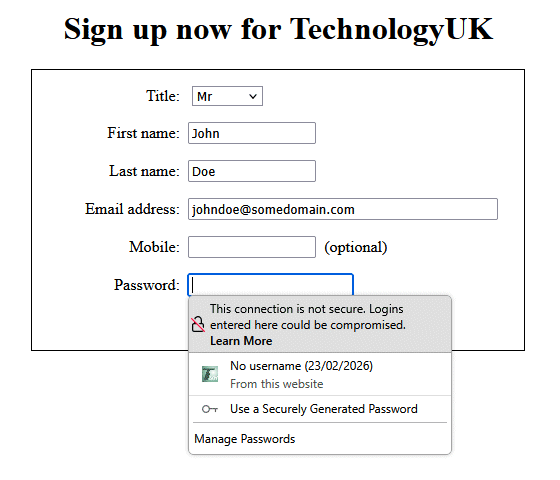
We will look at client-side password validation elsewhere in this section
When we click on a form's "Submit" button - and assuming the information entered in the form's input fields satisfies all of the form's validation requirements - the form data will be submitted, to whatever communication endpoint is specified by the form's action attribute, as an HTTP request message. For the examples provided in this article, that endpoint will invariably be a PHP script that will process the form data.
Before we submit the form data, however, we need to consider just how that form data will be submitted. This is determined by the value supplied for the HTML form's method attribute - usually GET or POST. These methods correspond to PHP's $_GET and $_POST superglobals respectively (a superglobal is a variable that is available in all scopes throughout a script).
If you do not explicitly specify a value for the method attribute, an HTML form will use GET by default. Once the HTTP request message has been submitted to the server, the $_GET superglobal can be used to retrieve the key-value pairs that make up the form data. The illustration below shows the sign-up form after we have entered some data but before the "Submit" button has been clicked.
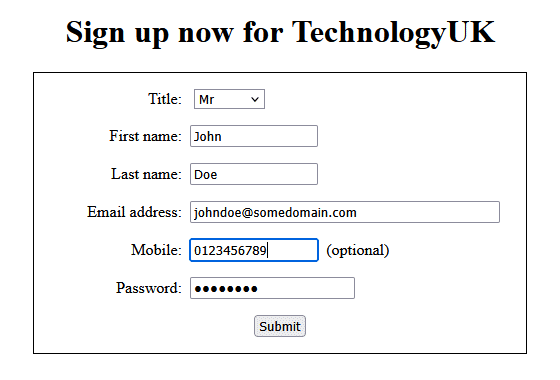
The form has been filled in and is awaiting form submission
Let's assume that the form's method attribute is set to GET. Form data that is sent using the GET method appears in the browser's address bar as part of the URL when the form data is submitted to the server, which means it is clearly visible, including passwords and other potentially sensitive information. Once we click on the "Submit" button, we'll see the following information in the browser's address bar:
http://myserver/sign-up.html?honorific=Mr&fname=John&lname=Doe&email=johndoe%40somedomain.com&mob=0123456789&pword=password
As you can see, all of the form's key-value pairs are clearly visible, since they are embedded in the URL that is sent to the server. Obviously, in this example no data has actually been sent to the server because we have not specified a value for the form's action attribute.
If we submit form data using GET, the data we are sending is visible to everyone. This represents a potential security risk if the form data includes any sensitive information, like a password or an individual's personal details. There is also a limit on the number of characters that can be sent via the GET method (this varies between browsers, but a good rule of thumb would be 2048 characters).
The GET method is suitable for sending small amounts of non-sensitive data to the server, and for retrieving data from the server. It has the advantage that the URL it produces can be bookmarked, which makes it ideal for sending search queries that we may want to use more than once, or share with a third party.
In most situations, we should avoid using GET for sending form data to a server, not just because the form data is visible in the URL created by the HTTP request, but because the URL can also be stored in our browser history, or in the server's log files. As a rule of thumb, only use GET for transactions that don't change the state of the server in any way (for example by adding to or amending the information stored in a database).
We're now going to create a PHP script that simply retrieves the key-value pairs that make up the data submitted by any form, and set the name of the PHP file containing the script as the action attribute of our sign-up form. The script should produce the same outputs in terms of the data received, regardless of the method used to submit the form. Here is the code:
<?php
echo "FORM DATA:<br><br>";
if($_SERVER["REQUEST_METHOD"] == "GET") {
echo "Request method is GET.<br><br>";
echo "KEY-VALUE PAIRS:<br><br>";
echo "<table><tr><td>Key</td><td>Value</td></tr>";
foreach($_GET as $key=>$value) {
echo "<tr><td>$key </td><td>$value</td></tr>";
}
echo "</table>";
}
else if($_SERVER["REQUEST_METHOD"] == "POST") {
echo "Request method is POST.<br><br>";
echo "KEY-VALUE PAIRS:<br><br>";
echo "<table><tr><td>Key</td><td>Value</td></tr>";
foreach($_POST as $key=>$value) {
echo "<tr><td>$key </td><td>$value</td></tr>";
}
echo "</table>";
}
?>
Copy and paste this code into a text file and save the file as show-data.php in your server's document root directory. Set the method attribute of the sign-up form as GET and the action attribute as show-data.php, then open the sign-up.html file in a browser, enter some data, and click on the "Submit" button. You should see something like the following:
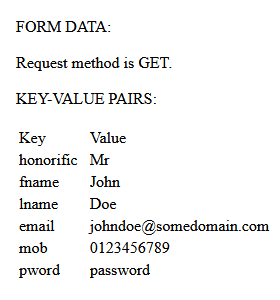
The form data stored in $_GET, displayed as key-value pairs
If you look at the browser's address bar immediately after submitting the form when using GET as the request method, you will see something like this:
http://myserver/show-data.php?honorific=mr&fname=John&lname=Doe&email=johndoe%40somedomain.com&mob=0123456789&pword=password
This URL is the same as the one we saw previously when we did not specify values for the form's method or action attributes.
Now change the method attribute in the sign-up form to POST, open the sign-up.html file in a browser once more, enter the same data, and click on "Submit" again. The result should be similar to what we saw previously, except for the request method being reported:
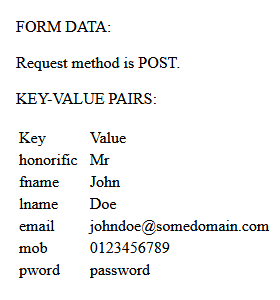
The form data stored in $_POST, displayed as key-value pairs
As you can see, the key-value pairs stored in the superglobals $_GET and $_POST are identical. If you look in the browser's address bar, however, you will see immediately that when we use POST as the request method instead of GET, the key-value pairs that hold the form's data are not shown. In fact, the URL in the address bar should now look like this:
http://myserver/show-data.php
Form data that is sent using POST as the request method is embedded within the body of the HTTP request rather than the header, which is why we don't see it displayed within the URL. Bear in mind however that the form data is still passed to the server as plain text unless the Transport Layer Security (TLS) cryptographic protocol is used, but we'll cover that topic elsewhere in this section.
When sending form data to the server, we should always use POST as the method attribute This method is more secure because POST requests do not display form data in the URL, cannot be bookmarked, and are not cached by the server (at least, not by default). In addition, the amount of data that can be included in a POST request is not limited to a couple of kilobytes as it is with GET, which means that multipart form data can be used, allowing large files to be uploaded.
As we have seen, submitting form data to a server can be accomplished using either the POST or GET methods to create an HTTP request message, with the POST method being preferred for the transfer of sensitive user data, large data sets, or the submission of files. As well as simply moving form data and files to the server, however, we need to provide some kind of meaningful feedback to the user to let them know whether or not the transaction has been successful, and perhaps to confirm the details of the action undertaken.
This feedback is usually in the form of a dynamically-generated web page that will be displayed to the user once the form data has been submitted. In the case of our sign-up form, we could return a web page that acknowledges receipt of the user-supplied data, and perhaps provides a summary of the data that will be stored on the server. For example:
<?php
// Server-side form data is processed here.
// If something goes wrong a different response page will be generated.
if(false){
echo "Oooops . . . !! Something went wrong . . . :-(";
exit;
}
?>
<!doctype html>
<html lang="en">
<head>
<meta charset="utf-8">
<title>Registration Confirmation</title>
<style>
form {width: 460px; margin: auto; border: solid 1px; padding: 0 1em;}
input {border: none;}
label {width: 140px; display: inline-block; text-align: right;}
h1, p.msg {text-align: center;}
</style>
</head>
<body>
<h1>Registration Confirmation</h1>
<p class="msg">
Congratulations. You have successfully registered with TechnologyUK.net<br>
Your user details are as follows:
</p>
<form>
<p><label>Title: </label><?php echo $_POST["honorific"]; ?></p>
<p><label>First name: </label><?php echo $_POST["fname"] ?></p>
<p><label>Last name: </label><?php echo $_POST["lname"] ?></p>
<p><label>Email address: </label><?php echo $_POST["email"] ?></p>
<p><label>Mobile: </label><?php echo $_POST["mob"] ?></p>
<p><label>Password: </label><input type="password" value=<?php echo $_POST["pword"] ?> disabled></input></p>
</form>
</body>
</html>
Copy and paste this code into a text file and save the file as sign-up-response.php in your server's document root directory. Set the method attribute of the sign-up form as POST and the action attribute as "sign-up-response.php", then open the sign-up.html file in a browser, enter some data, and click on the "Submit" button. You should see something like the following:
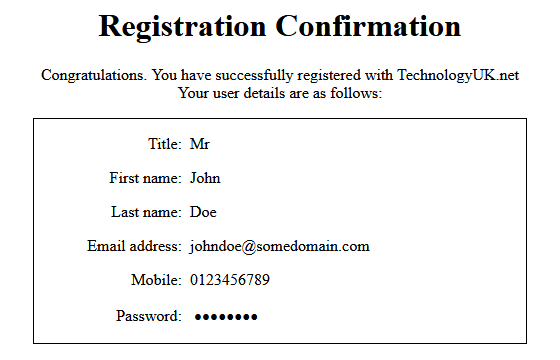
Form submission should provide user feedback
We have used almost the same HTML code to display the form to the user as we used to create the form in the first place. The main difference is that we have replaced all of the input fields except for the password field with PHP code fragments that display the data entered by the user in each field. The password field is still used so that we can hide the actual password, but we have disabled it so that it cannot be edited.
We have not actually included any code here to process the data submitted by the server. A typical scenario in this situation is that the form data will undergo server-side validation. If the data is valid, it will be stored in a back-end database or in a file on the server for future use. Should the validation fail, or some other problem be encountered, a somewhat different dynamically-created web page will be sent to the user informing them of the problem.
As you can see from the above example, we can insert PHP code wherever we need to within our HTML code in order to retrieve and display the values stored in the $_POST superglobal, which we do using array notation. The user's first name, for example, is inserted into the corresponding place in our HTML code using <?php echo $_POST["fname"] ?>.
Client-side validation of form data is carried out largely in order to ensure that all of the required input fields contain data, and that the data in each input field is in the correct format. The client-side validation code cannot determine whether the server will accept the submitted data.
A client-side script cannot decide, for example, whether the username and password entered by a user are valid or not. That can only be done by a script on the server, which will need to check the credentials submitted against the data it holds, which is usually stored in a back-end database, or in a file on the server.
Server-side validation of submitted form data is carried out as a prelude to any further processing that the server needs to perform on the data. In general terms, it checks the incoming form data for any errors or omissions that have evaded the client-side validation process. It does so using information that is unavailable to the client-side validation script, such as whether data destined for a backend database is duplicating an existing database entry.
Essentially, a server-side PHP validation script can perform the same checks that a client-side validation script written in an ECMA-compliant language such as JavaScript can. Given that a user with malicious intent and sufficient knowledge can bypass JavaScript form validation, either by disabling JavaScript, or by other means, that's probably not a bad idea. The important thing to remember when dealing with form data - or any kind of user input for that matter - is that you should never trust it.
The main problem with writing a PHP script to validate form data is that, while it will certainly pick up any errors or omissions missed by client-side validation, there is no easy way to reload the page containing the form so that the user can supply any missing data, or correct any errors, without losing any data that has already been entered.
One solution that is frequently used is to include both the form and the logic for checking the form data in a single PHP file. A form that is implemented in this way is sometimes called a self-processing form. We'll be looking at how we can apply this technique to our sign-up form next.
Meanwhile we provide below a brief summary of some of the built-in functions provided by PHP that can be used to validate and sanitise form data, some of which have already been used in the examples provided in this article:
As well as these built-in functions, we can use customised regular expressions to validate things like phone numbers or passwords to ensure that we get them in the format we require.
It is frequently the case that form data will be stored in a file or a database on the server. In either case there are potential risks involved. For example, a would-be attacker may try to manipulate the input in order to access a file or directory they are not authorised to access, or to create a database query that gives them unauthorised access to the data stored in a database.
The validation of form data is necessary to ensure that you get all of the information you need, and in the correct format. The sanitisation of form data ensures that a user cannot insert malicious code into an input field that could corrupt a database, cause the loss of data, or provide unauthorised access to sensitive data.
We will return to the topic of validating and sanitising form data when examine how we can use PHP to work with a server-side database elsewhere in this section. We will also be looking at how we can make the submission of form data more secure by using a cryptographic protocol such as Transport Layer Security (TLS) to submit form data.
In the meantime, simply be aware that, although we have provided some basic examples of how to validate and sanitise form data, there are still a lot of improvements we can make in this respect.
Using PHP, it is possible for a web page on which a form resides to submit form data to itself. That means we can include the PHP code that validates a form's data on the same page that defines the form. This gives the user the opportunity to add any missing data, or correct any input errors, before the form data is sent for further processing, and before the page containing the form is replaced.
The best way to illustrate how this works is probably to provide an example. The code below creates a web page containing a sign-up form that is virtually identical to the sign-up form we created earlier, except that this time we are using a PHP file to implement both the form itself and the code that will validate the form data, as well as generating an appropriate response to the form submission. Here is the code:
<?php
$honorific = $fname = $lname = $email = $mob = $pword = $err = $confirmation = "";
if ($_SERVER["REQUEST_METHOD"] == "POST") {
$honorific = clean_input($_POST["honorific"]);
$fname = clean_input($_POST["fname"]);
$lname = clean_input($_POST["lname"]);
$email = clean_input($_POST["email"]);
$mob = clean_input($_POST["mob"]);
$pword = clean_input($_POST["pword"]);
if($honorific == "") {
$err = "The Title field is required. Please choose an option from the drop-down list.";
}
else if($fname == "") {
$err = "Please enter your first name.";
}
else if($lname == "") {
$err = "Please enter your last name.";
}
else if($email == "") {
$err = "Please enter an email address.";
}
else if($pword == "") {
$err = "Please enter a password.";
}
else {
// Data has been validated.
// Do some backend processing
// with form data here.
// If no problems encountered,
// send feedback to user.
$err = "";
$confirmation = "<h1>Registration Confirmation</h1>\n";
$confirmation .= "<p class='msg'>\n";
$confirmation .= "Congratulations. You have successfully registered with TechnologyUK.net<br>\n";
$confirmation .= "Your user details are as follows:\n";
$confirmation .= "</p>\n";
$confirmation .= "<form>\n";
$confirmation .= "<p><label>Title: </label>" . $honorific . "</p>\n";
$confirmation .= "<p><label>First name: </label>" . $fname . "</p>\n";
$confirmation .= "<p><label>Last name: </label>" . $lname . "</p>\n";
$confirmation .= "<p><label>Email address: </label>" . $email . "</p>\n";
$confirmation .= "<p><label>Mobile: </label>" . $mob . "</p>\n";
$confirmation .= "<p><label>Password: </label><input class='pwd' type='password' value=" . $pword . "disabled></input></p>\n";
$confirmation .= "</form>\n";
}
}
function clean_input($data) {
$data = trim($data);
$data = stripslashes($data);
$data = htmlspecialchars($data);
return $data;
}
?>
<!doctype html>
<html lang="en">
<head>
<meta charset="utf-8">
<title>Sign Up Form Demo</title>
<style>
form {width: 460px; margin: auto; border: solid 1px; padding: 0 1em;}
input.pwd {border: none;}
label {width: 140px; display: inline-block; text-align: right;}
h1, p.err, p.msg {text-align: center;}
select {background-color: #fff; border: solid 1px #8f8f9d;}
</style>
</head>
<body>
<?php if(empty($confirmation)) { ?>
<h1>Sign up now for TechnologyUK</h1>
<form id="frm" method="POST" action="<?php echo $_SERVER['PHP_SELF']; ?>" novalidate>
<p><label for="honorific">Title: </label>
<select id="honorific" name="honorific" required>
<option value="<?php echo $honorific; ?>" selected readonly><?php echo $honorific; ?></option>
<option value="Mr">Mr</option>
<option value="Ms">Ms</option>
<option value="Mrs">Mrs</option>
<option value="Diverse">Diverse</option>
</select>
</p>
<p><label for="fname">First name: </label><input type="text" size="15" value="<?php echo $fname; ?>" id="fname" name="fname" required></p>
<p><label for="lname">Last name: </label><input type="text" size="15" value="<?php echo $lname; ?>" id="lname" name="lname" required></p>
<p><label for="email">Email address: </label><input type="email" size="40" value="<?php echo $email; ?>" id="email" name="email" required></p>
<p><label for="mob">Mobile: </label><input type="tel" size="15" value="<?php echo $mob; ?>" id="mob" name="mob"> (optional)</p>
<p><label for="pword">Password: </label><input type="password" size="20" value="<?php echo $pword; ?>" id="pword" name="pword" required></p>
<p style="text-align: center;"><button type="submit">Submit</button></p>
</form>
<p class="err"><?php echo $err ?></p>
<?php } ?>
<?php echo $confirmation ?>
</body>
</html>
Copy and paste this code into a text file and save the file as sign-up.php in your server's document root directory. If you open the file in a browser, you will see a sign-up form that is pretty much identical to the one we saw earlier, but this time there is a lot more going on behind the scenes.
Most of the PHP code in this example is located at the top of the file. The first line of code sets up a number of string variables that will hold the form data entered by the user, as well as a variable to hold an error message, and another variable to hold HTML code that will provide the user feedback once the form has been submitted successfully:
$honorific = $fname = $lname = $email = $mob = $pword = $err = $confirmation = "";
The code that follows checks whether or not the request method used is POST. The first time the page is displayed, it will of course be GET (the default), and the rest of the PHP code at the top of the file is skipped.
Once we have clicked on the "Submit" button, however, the method will change to POST, and the code will extract the form data values from the $_POST superglobal, sanitise each value using the clean_input() function, and assign the sanitised values to their respective variables.
The user-defined clean_input() function calls three built-in PHP functions in order to clean up the data. The trim() function removes any spurious white space (e.g. leading or trailing white space characters) from the input string.
The stripslashes() function strips out any reverse solidus (backslash) characters, and the htmlspecialchars() function changes any characters that have special significance in HTML into their corresponding HTML entities. These "sanitisation" measures prevent would-be attackers from entering malicious code into input fields that would otherwise be executed by the server, with potentially damaging results.
Once the sanitised form data has been assigned to the appropriate script variables, the variables are checked for validity. Note that, in order to keep things simple, all we're really doing here in terms of validation is to make sure that something has been entered for each of the required input fields. In a real-world application we would implement a somewhat more rigorous validation process.
If a value is missing for a required form field, the $err variable is assigned an appropriate message. Validation stops at that point and the form is redisplayed, including any data entered by the user that has already been successfully validated. A message appears below the form asking the user to supply the missing input.
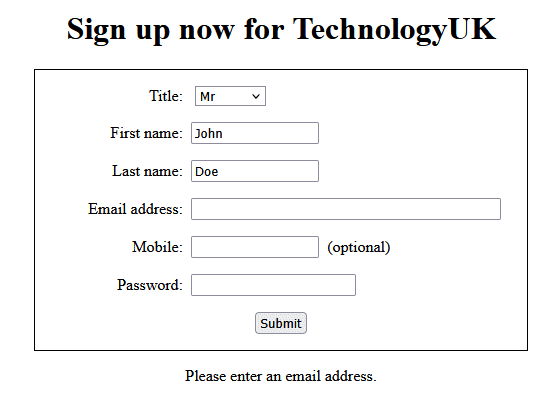
The user is asked to supply the missing email address
Depending on how your XAMPP server is configured - and in most cases you will not yet be using cryptographic protocols like Secure Sockets Layer (SSL) or its successor Transport Layer Security (TLS), your browser may generate a warning when you click in the password field. This is because sending passwords in clear text is a security risk. Nevertheless, you should still be able to enter a password in this field and submit the form.
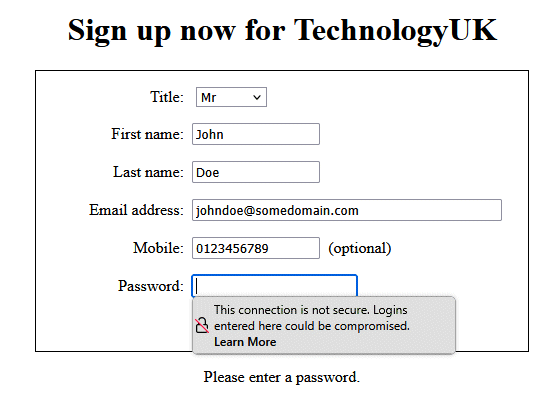
The browser will warn you that the connection is not secure
Note that the $confirmation variable that will eventually hold the code for the user feedback - should form submission be successful - will not be assigned a value until all of the required form data has been validated. If this variable remains empty, the form will be redisplayed. Look carefully at the code that immediately follows the HTML <body> tag:
<?php if(empty($confirmation)) { ?>
// The HTML code that displays the form
// and the error message goes here
.
.
.
<?php } ?>
Once all of the form data has been successfully validated, the HTML form and the error message will no longer be displayed. Instead, the user will see a message confirming that their registration has been successful, together with a summary of the information that has been retained by the server for further processing. We have essentially redisplayed the original HTML form, complete with user data, but in a read-only format.
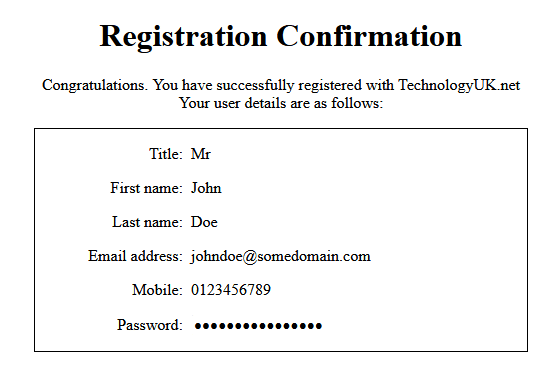
The web page now displays a confirmation message
In the above script, $_SERVER is an associative array created by the web server in which the value corresponding to the 'PHP_SELF' key is the filename of the currently executing script, relative to the document root. Because we are using this variable as part of the form's action attribute, the form data will be submitted to the web page containing the form itself, rather than generating a new dynamic web page.
The use of a self-processing form makes life somewhat easier when it comes to keeping track of what data the user has entered, especially if we have to ask them to supply missing data or correct invalid input. It enables us to do everything we need to do to process the form "under one roof", so to speak. Obviously, the validation we carried out in this example was somewhat minimalistic, but hopefully you can appreciate the underlying mechanisms involved in creating a self-processing form.
You have probably come across the online services provided by organisations of various kinds, including employment agencies, educational institutions, banks, insurance companies, and government departments, that ask you to upload scanned documents or images in support of an online application. For example, if you apply for a passport online, you will need to upload a recent picture of yourself in the correct format, possibly accompanied by other supporting documents.
Using a form to upload files requires a different approach to that used for submitting purely text-based data. A user's name, address, telephone number or date of birth can easily be collected using standard HTML input fields. In order to provide a photograph, or a scanned copy of a supporting document, we need to upload a file of some kind.
The code below creates a basic sign-up form that requests the user to enter a username, an email address, and a password. In addition, the user is asked to upload an image that will be used as their online avatar. The image filetype must be .png, .jpg, .jpeg or .gif, but there are no constraints otherwise. The image used can be a photograph, a cartoon character, or whatever. Here is the code:
<!doctype html>
<html lang="en">
<head>
<meta charset="utf-8">
<title>Sign-up Form with Avatar</title>
<style>
h1, p.msg { text-align: center; }
form {width: 560px; margin: auto; border: solid 1px; padding: 0 1em;}
label {width: 140px; display: inline-block; text-align: right; vertical-align: top; }
img { border: solid black 1px; }
</style>
</head>
<body>
<h1>Create your account</h1>
<p class="msg"><strong>Account details:</strong><br><br>(fields marked with an asterisk are required)</p>
<form id="frm" method="POST" action="sign-up-with-avatar.php" enctype="multipart/form-data">
<p>
<label for="uname">*Username: </label>
<input type="text" name="uname" required>
</p>
<p>
<label for "email">*Email address: </label>
<input type="email" name="email" size="50" required>
</p>
<p>
<label for="pword">*Password: </label>
<input type="password" name="pword" required>
</p>
<p>
<label for="avatar_file">Profile picture: </label>
<input type="file" name="avatar_file" id="avatar_file" accept="image/png, image/jpeg, image/gif" />
</p>
<p>
<label for="preview">Peview: </label>
<img name="preview" height="150" width="auto" src="avatars/default-avatar.gif">
</p>
<p>
<label></label>
<input type="submit" value="Submit">
</p>
</form>
<script>
const frm = document.getElementById("frm");
const avatar_file = frm.avatar_file;
const preview = frm.preview;
const reader = new FileReader();
avatar_file.addEventListener("change", getPic);
reader.addEventListener("load", loadPic);
function getPic() { reader.readAsDataURL(avatar_file.files[0]); }
function loadPic() { preview.src = reader.result; }
</script>
</body>
</html>
Now take the following steps to set things up:
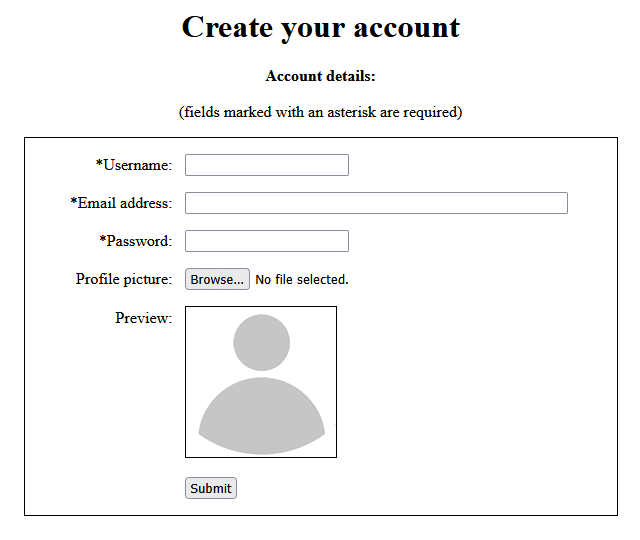
Open the file sign-up-with-avatar.html and complete the form
Most of the HTML and JavaScript code in the sign-up-with-avatar.html file is self-explanatory, but there are a few things to note. The form tag looks like this:
<form id="frm" method="POST" action="sign-up-with-avatar.php" enctype="multipart/form-data">
The important thing here is the enctype property, which we have set to "multipart/form-data". The word enctype is a contraction of encoding type, and the value assigned to this attribute is used is used to determine how the form data should be encoded when submitting form data that includes files.
The next thing to note is this line, which lets the user browse the local drives on their computer and select an image file of type .png, .jpg, .jpeg or .gif to be their avatar:
<input type="file" name="avatar_file" id="avatar_file" accept="image/png, image/jpeg, image/gif" />
The value passed to the accept attribute is a comma separated list of file types. These are the only filetypes the user will see when they browse a local drive for an image to upload. Note that before an avatar is chosen by the user, the default-avatar.gif file is used to provide a placeholder image.
The JavaScript code at the bottom of the HTML file is also fairly self-explanatory. We have attached an event listener to the HTML document's file input control that is triggered when a user chooses an avatar file. Once triggered, the event listener calls the getPic() function, which loads the selected image file into a FileReader object.
The FileReader object has its own event listener which is triggered when a file is loaded, and which calls the loadPic() function. The loadPic() function sets the src attribute of the form's <img> element to point to the image file uploaded by the user.
You don't need to worry if you don't understand fully how the JavaScript code works. The important thing to understand is that whatever file the user selects will be uploaded to the server, and will be made available to the PHP script that handles the form data.
To test the HTML file, enter a username, email address and password, and select an image file using the "Browse..." button. Depending on what user details you entered, and what image file you selected, you should se something like this:
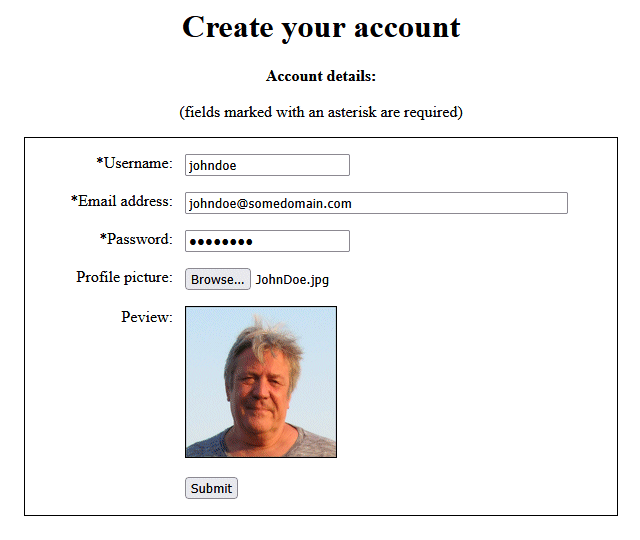
Open the file sign-up-with-avatar.html and complete the form
Once you click on the "Submit" button the code is sent to a PHP file called sign-up-with-avatar.php (which of course doesn't exist yet) to be processed. The code for that script is shown below.
<!doctype html>
<html lang="en">
<head>
<meta charset="utf-8">
<title>Sign-Up Form with Avatar</title>
<style>
h1, p.msg { text-align: center; }
form {width: 460px; margin: auto; border: solid 1px; padding: 0 1em; }
label {width: 140px; display: inline-block; text-align: right; vertical-align: top; }
img { border: solid black 1px; }
input.pwd {border: none; }
</style>
</head>
<body>
<?php
function clean_input($data) {
$data = trim($data);
$data = stripslashes($data);
$data = htmlspecialchars($data);
return $data;
}
$register_dir = "registered_users/";
$uname = clean_input($_POST["uname"]);
$user_file = $register_dir . $uname . ".txt";
if(!file_exists($user_file) && $_SERVER["REQUEST_METHOD"] == "POST") {
$input = $_POST["email"] . "\n" . $_POST["pword"];
file_put_contents($user_file, $input);
?>
<h1>Sign-up Confirmation</h1>
<p class="msg">
Congratulations. You are now signed up for our blog!<br>
Your profile has been created.
</p>
<?php
$email = clean_input($_POST["email"]);
$pword = clean_input($_POST["pword"]);
$filename = basename($_FILES["avatar_file"]["name"]);
if(!$filename == "") {
$ext_pos = strrpos($filename, ".") + 1;
$ext = substr($filename, $ext_pos);
$avatar_file = $register_dir . $uname . "." . $ext;
move_uploaded_file($_FILES["avatar_file"]["tmp_name"], $avatar_file);
}
else {
$avatar = "avatars\default-avatar.gif";
$avatar_file = $register_dir . $uname . ".gif";
copy($avatar, $avatar_file);
}
?>
<form>
<p><label>Username: </label><?php echo $uname ?></p>
<p><label>Email address: </label><?php echo $email ?></p>
<p><label>Password: </label><input class="pwd" type="password" value="<?php echo $pword ?>" disabled></input></p>
<p><label>Avatar: </label><img height="150" width="auto" src="<?php echo $avatar_file ?>"></p>
</form>
<?php }
else { ?>
<h1>Sign-up Failure</h1>
<p class="msg">
The username "<?php echo $_POST["uname"] ?>" has been taken.<br>
please register with a different username.
</p>
<?php } ?>
</body>
</html>
Copy and paste the code above into a new text file and save it as sign-up-with-avatar.php in your server's document root directory. You are now ready to try out the form, but before you do, we'll run through the code quickly and explain whet it does.
We have seen the user-defined clean_input() function before. Just to recap, this function calls the three built-in PHP functions trim(), stripslashes() and htmlspecialchars() in order to "sanitise" the user input by removing any spurious white space characters, stripping out backslashes, and changing any characters that have special significance in HTML into their corresponding HTML entities.
We then set up three variables:- $register_dir to hold the name of the directory where we are going to store the user's data, $uname to hold their username, and $user_file to hold the name of the file that will contain the user's text-based data. The $uname variable is assigned the (sanitised) value of $_POST["uname"].
Unless there is already a text file in the registered_users directory with a filename that matches the username submitted, the code below creates a text file with a name derived from the $uname variable. The code writes the user's email address and password to this file, and generates an appropriate response:
if(!file_exists($user_file) && $_SERVER["REQUEST_METHOD"] == "POST") {
$input = $_POST["email"] . "\n" . $_POST["pword"];
file_put_contents($user_file, $input);
?>
<h1>Sign-up Confirmation</h1>
<p class="msg">
Congratulations. You are now signed up for our blog!<br>
Your profile has been created.
</p>
<?php
$email = clean_input($_POST["email"]);
$pword = clean_input($_POST["pword"]);
//
// The code that deals with the avatar goes here . . .
//
<form>
<p><label>Username: </label><?php echo $uname ?></p>
<p><label>Email address: </label><?php echo $email ?></p>
<p><label>Password: </label><input class="pwd" type="password" value="<?php echo $pword ?>" disabled></input></p>
<p><label>Avatar: </label><img height="150" width="auto" src="<?php echo $avatar_file ?>"></p>
</form>
<?php }
The user will see a message confirming that the sign-up process has been successful. The user's avatar is also displayed as part of the response, but the image the user sees will depend on whether or not they have selected an image file to represent them. Here is the code that generates the user's avatar:
$filename = basename($_FILES["avatar_file"]["name"]);
if(!$filename == "") {
$ext_pos = strrpos($filename, ".") + 1;
$ext = substr($filename, $ext_pos);
$avatar_file = $register_dir . $uname . "." . $ext;
move_uploaded_file($_FILES["avatar_file"]["tmp_name"], $avatar_file);
}
else {
$avatar = "avatars\default-avatar.gif";
$avatar_file = $register_dir . $uname . ".gif";
copy($avatar, $avatar_file);
}
This time, we don't use the $_POST superglobal to get the data we need. Instead, we use $_FILES - a superglobal that contains information about the file (or files) uploaded by the current HTTP request. We get the name of the uploaded file by using the "avatar_file" key, which corresponds to the file uploaded by sign-up-with-avatar.html, and the "name" value which holds the original filename.
If the user has actually selected an avatar file, the filename will not be empty. That being the case, the code extracts the file extension from the filename:
$ext_pos = strrpos($filename, ".") + 1;
$ext = substr($filename, $ext_pos);
The next line of code generates the filename that will be used to store the user's avatar:
$avatar_file = $register_dir . $uname . "." . $ext;
The last step is to move the uploaded file, which has been stored on the server using a temporary filename, into the registered_users directory using the move_uploaded_file() function, and the file's temporary filename is changed to the filename stored in the $avatar_file variable:
move_uploaded_file($_FILES["avatar_file"]["tmp_name"], $avatar_file);
If the user has completed the required fields and has selected a username that doesn't already exist, and if they have selected an image for their avatar, clicking on the "Submit" button should produce a response that looks something like this:

The sign-up process has been completed successfully
If no image file has been selected by the user, the script will use a copy of the default-avatar.gif file that resides in the avatars directory, and the user will see something like this:
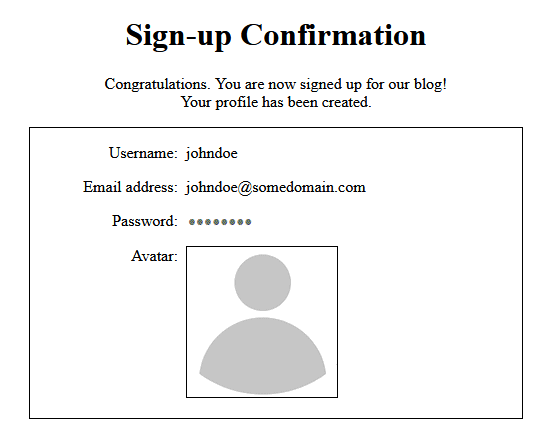
The default avatar is used
If you now look in the registered_users directory, you should see that two new files have been created, both of which have the same basename (the basename is the filename minus the file extension), which will match the username chosen by the user whose registration has just been completed. One of these files will be an image file, the other will be a text file that contains the email address and password of the user.
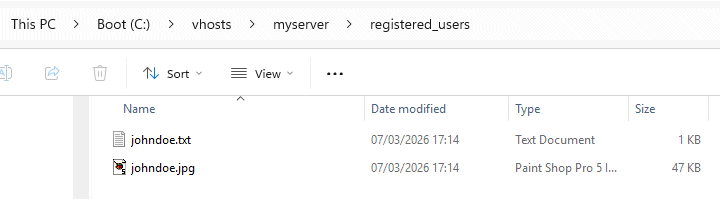
The user's avatar file and a text file containing their details have been created
The HTML code that follows the else statement is shown below. This code is only rendered by the browser if the username they chose is already taken.
<?php }
else { ?>
<h1>Sign-up Failure</h1>
<p class="msg">
The username "<?php echo $_POST["uname"] ?>" has been taken.<br>
please register with a different username.
</p>
<?php
If the username has been taken, the user will see a brief message informing them that the username is already in use, and asking them to register with a different username:
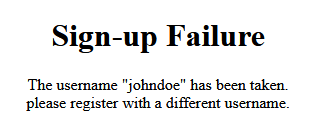
The user is asked to try again with a different username
We will be looking at how PHP handles files in more detail in another article. The only other thing to mention here is that if you encounter a problem uploading an avatar file to your server, check the file_uploads setting in the php.ini file (on a Windows computer, this will be in the php subdirectory of the xampp directory). This property should be set to "On" by default. If not, change the line to read as follows:
file_uploads = On
Cookies are small files that are stored on a client computer by a website or web application that are used to store small amounts of data about a user that is used by the website or web application each time the user accesses that website or web application. They are typically used to store user preferences and other user-related information.
The code below creates a web page that contains a user registration form whose purpose is to collect various items of personal data. It has input fields for the user's preferred honorific (Mr, Mrs, Ms etc.), first and last names, date of birth, and email address, all of which are mandatory fields. There are also optional input fields for the user to enter the URL of their website (if they have one), enter additional information, and select one or more hobbies.
The web page also contains two additional forms, each of which contains a single button of type submit. Each of these forms has the filename of a PHP script as their action attribute. One of these scripts will display the cookies stored on the client computer. The other will delete those cookies. Here is the code for the registration form:
<!DOCTYPE html>
<html lang="en">
<head>
<meta charset="UTF-8">
<title>Registration Form with Cookie Handling</title>
<style>
h1, p.msg { text-align: center; }
form { padding: 0 1em; }
label.input {width: 140px; display: inline-block; text-align: right; vertical-align: top; }
div.wrapper { border: 1px solid gray; max-width: fit-content; margin: auto; }
div.main { text-align: left; }
div.block { display: inline-block; text-align: left; }
fieldset { display: block; float: left; }
</style>
</head>
<body>
<h1>User Registration</h1>
<p class="msg">Please enter your personal details below:<br><br>(fields marked with an asterisk are required)</p>
<div class="wrapper">
<form method="POST" action="registration.php">
<p>
<label class="input" for="fname">*First name:</label>
<input type="text" id="fname" name="fname" required>
</p>
<p>
<label class="input" for="lname">*Last name:</label>
<input type="text" id="lname" name="lname" required>
</p>
<p>
<label class="input" for="dob">*Date of birth:</label>
<input type="date" id="dob" name="dob" required>
</p>
<p>
<label class="input" for "email">*Email address: </label>
<input type="email" id="email" name="email" size="50" required>
</p>
<p>
<label class="input" for "website">Website: </label>
<input type="url" id="website" name="website" size="50">
</p>
<div class="main">
<label class="input"></label>
<div class="block">
<fieldset>
<legend>* Title:</legend>
<label><input type=radio name="title" id="mr" required value="Mr"> Mr</label><br>
<label><input type=radio name="title" id="mrs" required value="Mrs"> Mrs</label><br>
<label><input type=radio name="title" id="ms" required value="Ms"> Ms</label><br>
<label><input type=radio name="title" id="other" required value="Other"> Other</label><br>
</fieldset>
<fieldset>
<legend>Hobbies</legend>
<label><input type=checkbox name="hobbies[]" id="reading" value="reading"> Reading</label><br>
<label><input type=checkbox name="hobbies[]" id="sport" value="sport"> Sport</label><br>
<label><input type=checkbox name="hobbies[]" id="music" value="music"> Music</label><br>
<label><input type=checkbox name="hobbies[]" id="travel" value="travel"> Travel</label><br>
</fieldset>
</div>
</div>
<br>
<label class="input" for="comments">Comments:</label>
<textarea id="comments" name="comments" rows="4" cols="50" placeholder="Enter any additional information here ..."></textarea>
<p>
<label class="input"></label><input type="submit" value="Submit">
</p>
</form>
<form action="view-cookies.php">
<p><label class="input"></label><input type="submit" value="View Cookie Data"></p>
</form>
<form action="delete-cookies.php">
<p><label class="input"></label><input type="submit" value="Delete Cookie Data"></p>
</form>
</div>
</body>
</html>
Copy and paste the code above into a new text file and save it as registration.html in your server's document root directory, then open the file in a browser. You should see something like the illustration below.
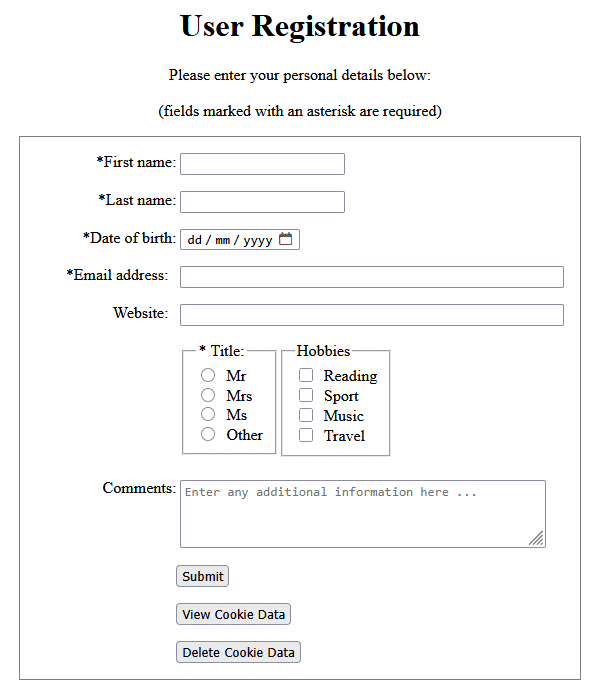
The form collects personal data about the user
As with some of the previous form examples, the client-side validation is fairly minimal - we rely on the built-in validation provided by HTML5 to ensure that the required fields have been filled, including the Date of birth and Title fields, and that a valid email address has been provided.
The Website field is optional, but if the user does enter a URL, HTML5 will check that it is a valid URL (this requires a suitable prefix to be included, such as http:// or https://). The Hobbies and Comments sections are also optional, and no validation will be carried out on these fields.
The HTML code in the above example shouldn't really need any further clarification. The only features we have not used before in the examples provided in this article are the radio buttons and checkboxes, and the <fieldset> elements used to group them. If you need to refresh your knowledge of the various form controls available and how they are used, have a look at the article "Creating and Formatting Forms" on this website.
If you enter some date in the form, you should see something like the following illustration:
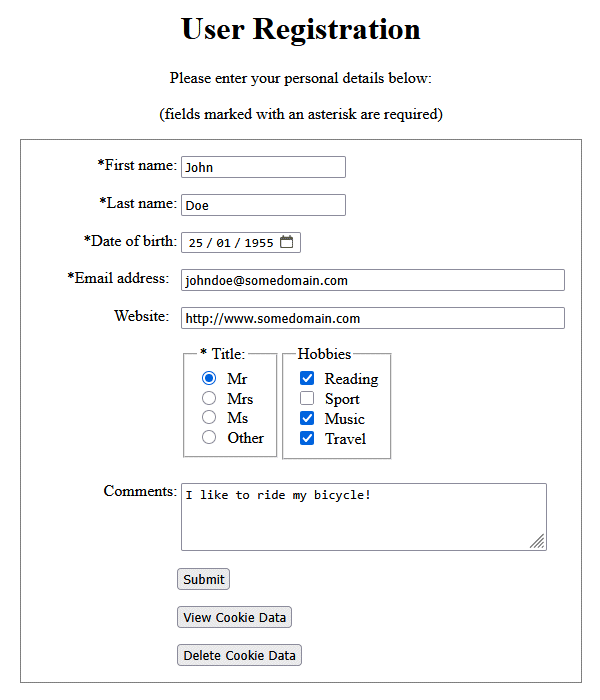
The completed form, ready to be submitted
Before we can actually submit the form, we need to create the PHP script that will handle the data. There will eventually be three scripts in total, one for each button on our registration page. The first of these (registration.php) is referenced by the main form's action attribute, and will be called when the user clicks on the "Submit" button (assuming all of the required fields have been completed). Here is the code:
<?php
$fname = $lname = $dob = $email = $website = $title = $hobbies = $comments = "";
function clean_input($data) {
$data = trim($data);
$data = stripslashes($data);
$data = htmlspecialchars($data);
return $data;
}
if ($_SERVER["REQUEST_METHOD"] == "POST") {
$fname = clean_input($_POST["fname"]);
$lname = clean_input($_POST["lname"]);
$dob = clean_input($_POST["dob"]);
$email = clean_input($_POST["email"]);
$website = clean_input($_POST["website"]);
$title = $_POST["title"];
$hobbies = isset($_POST['hobbies']) ? $_POST['hobbies'] : [];
$comments = clean_input($_POST["comments"]);
setcookie("fname", $fname, time() + (86400 * 30), "/");
setcookie("lname", $lname, time() + (86400 * 30), "/");
setcookie("dob", $dob, time() + (86400 * 30), "/");
setcookie("email", $email, time() + (86400 * 30), "/");
setcookie("website", $website, time() + (86400 * 30), "/");
setcookie("title", $title, time() + (86400 * 30), "/");
setcookie("hobbies", implode(", ", $hobbies), time() + (86400 * 30), "/");
setcookie("comments", $comments, time() + (86400 * 30), "/");
}
?>
<!DOCTYPE html>
<html lang="en">
<head>
<meta charset="UTF-8">
<title>Registration Form Handler</title>
<style>
h1 { text-align: center; }
div.main { text-align: center; }
div.block { display: inline-block; text-align: left; }
</style>
</head>
<body>
<h1>Confirmation of Registration</h1>
<div class='main'>
<div class='block'>
<h2>Registration Details:</h2>
<p><strong>Title:</strong> <?php echo $title; ?></p>
<p><strong>First name:</strong> <?php echo $fname ?></p>
<p><strong>Last name:</strong> <?php echo $lname ?></p>
<p><strong>Date of birth:</strong> <?php echo $dob ?></p>
<p><strong>Email:</strong> <?php echo $email ?></p>
<p><strong>Website:</strong> <a href=<?php echo "\"$website\" target=\"_blank\">$website" ?></a></p>
<p><strong>Hobbies:</strong> <?php echo implode(", ", $hobbies) ?></p>
<p><strong>Comments:</strong> <?php echo $comments ?></p>
<br><br>
<a href="javascript:history.back()">Return</a>
</div>
</div>
</body>
</html>
Copy and paste the code above into a new text file and save it as registration.php in your server's document root directory. We can now go ahead and submit our form. If you have not already done so, open the registration.html file in a browser, enter some data, and click on the "Submit" button. The result of doing so should produce something like the following:
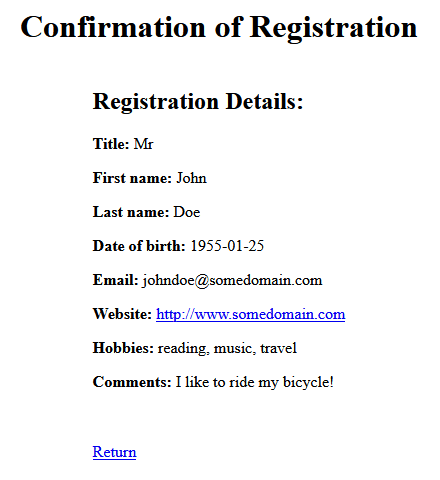
Submitting the form generates a user feedback page
Most of the PHP code in the registration.php file is self explanatory, given that we have already seen several examples that do something similar. The only feature we have not seen before is the setcookie() function, which creates a cookie and sends it to the client computer as part of the server's response to receiving the form data. Each cookie holds a single piece of information, such as a user's first name or email address.
The setcookie() function takes a number arguments, all of which but the first ($name) are optional. In the above script, we have only used the following arguments:
You can find a more detailed description of the setcookie() function on the PHP Group website. Note that there is a protocol restriction that requires cookies to be sent before any other output from the script. In other words, the setcookie() function must be called before any other PHP functions are called, and before any HTML markup is rendered.
The value returned by setcookie() will be true if the function succeeds, and false otherwise. Bear in mind, however, that even if the function succeeds this is not a guarantee that the cookie will be accepted by the user.
Once set, the cookies can be accessed using the $_COOKIE variable, which is an associative array containing the variables passed to the current script via HTTP cookies. The next script we create will attempt to retrieve the cookie date from the client computer. Here is the code for that script:
<!DOCTYPE html>
<html lang="en">
<head>
<meta charset="UTF-8">
<title>View Cookie Data</title>
<style>
h1 { text-align: center; }
div.main { text-align: center; }
div.block { display: inline-block; text-align: left; }
</style>
</head>
<body>
<h1>Stored Cookie Data</h1>
<div class="main">
<div class="block">
<?php
if (isset($_COOKIE["fname"])) {
echo "<p><strong>First name:</strong> " . $_COOKIE["fname"] . "</p>";
echo "<p><strong>Last name:</strong> " . $_COOKIE["lname"] . "</p>";
echo "<p><strong>Date of birth:</strong> " . $_COOKIE["dob"] . "</p>";
echo "<p><strong>Email:</strong> " . $_COOKIE["email"] . "</p>";
echo "<p><strong>Website:</strong> <a href='" . $_COOKIE["website"] . "' target='_blank'>" . $_COOKIE["website"] . "</a></p>";
echo "<p><strong>Title:</strong> " . $_COOKIE["title"] . "</p>";
echo "<p><strong>Hobbies:</strong> " . $_COOKIE["hobbies"] . "</p>";
echo "<p><strong>Comments:</strong> " . $_COOKIE["comments"] . "</p>";
}
else {
echo "<p>No cookie data found!</p>";
}
?>
</div>
<p><a href='javascript:history.back()'>Return</a></p>
</div>
</body>
</html>
Copy and paste the code above into a new text file and save it as view-cookies.php in your server's document root directory. Because we have already submitted form data, and assuming that the cookies created by the registration.php script have been accepted by the client, we should now be able to retrieve and view the cookies created by that script.
Either open the registration page (if you have closed it) or return to that page using the "Return" link on the Confirmation of Registration page, and click on the "View Cookie Data" button. You should see something like the following:
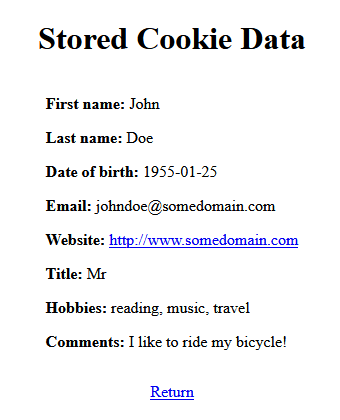
The cookie data has been stored on the client computer
If you examine the code in the view-cookies.php script, you will see that the first line of PHP text checks to see if a cookie named fname exists. If so, the rest of the PHP code simply outputs the contents of each cookie stored on the client computer for our website. If no cookie with the name fname is found, the script outputs a message telling the user that no cookies were found on their computer.
Click on the "Return" link to go back to the registration page once more. We will now create a script that deletes the cookies stored on the client machine for our website by setting their expiration time to some time in the past, and informs the user that the cookies have been deleted. Here is the code:
<?php
setcookie("fname", "", time() - 3600, "/");
setcookie("lname", "", time() - 3600, "/");
setcookie("dob", "", time() - 3600, "/");
setcookie("email", "", time() - 3600, "/");
setcookie("website", "", time() - 3600, "/");
setcookie("title", "", time() - 3600, "/");
setcookie("hobbies", "", time() - 3600, "/");
setcookie("comments", "", time() - 3600, "/");
?>
<!DOCTYPE html>
<html lang="en">
<head>
<meta charset="UTF-8">
<title>Cookie Deletion</title>
<style>
h1, div { text-align: center; }
</style>
</head>
<body>
<div class="main">
<h1>Cookies Deleted</h1>
<p>All cookies have been deleted successfully.</p>
<br><br>
<a href="javascript:history.back()">Return</a>
</div>
</body>
</html>
As you can see, we use the setcookie() function to reset the expiry time, of each cookie in turn, to the current time minus one hour. Copy and paste the code into a new text file and save it as delete-cookies.php in your server's document root directory. We can now delete all of the stored cookie data. If you have not already done so, open or go back to the registration page once more, then click on the "Delete Cookie Data" button. You should see the following:

The cookie data has been removed from the client computer
If you now click on the "View Cookie Data" button, you should see the following:
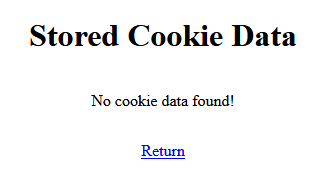
There is no cookie data on the client computer
In order to restore the cookies, go back to the registration page, complete the form once more, and click on the "Submit" button. Once you have done this, go into your browser's settings and look at the cookies stored on your computer. In Mozilla Firefox, the stored cookies can be found under Privacy & Security ->Cookies and Site Data ->Manage Browsing Data. If you sort the entries as most recent first, you should see something like this:
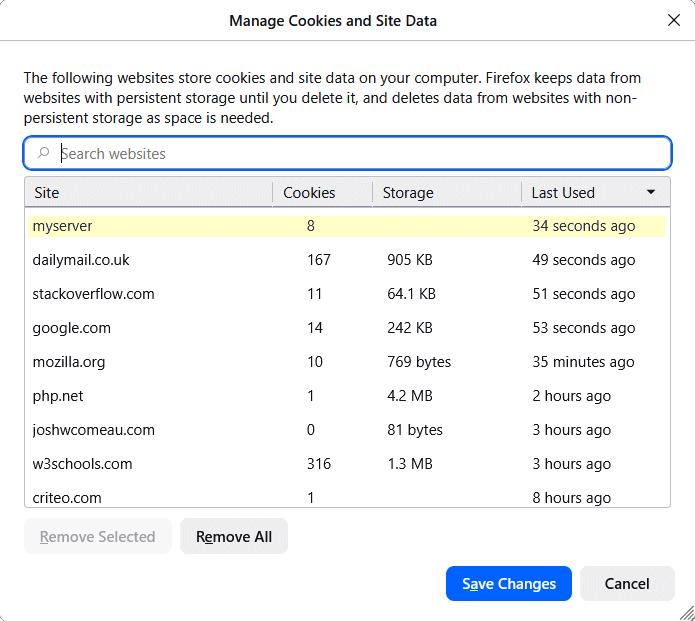
Information about the cookies stored by your browser can be found in the browser's settings
Now you know how to create and store cookies on a client computer to persist form data. Be careful when doing so though. Never store sensitive information like a password or a credit card number in a cookie. In fact, because a user can refuse to accept cookies and delete existing cookies from their computer, and despite how convenient cookies are, you might want to look at an alternative means of persisting user data, such as storing it in a secure database.